HR map Leave Types to Employee Categories in E-Track
Introduction:
The purpose of this document is to illustrate the importance of new attendance system. Amrita E-Track is an indigenous application designed to help the organization to run a digital attendance system. Here we will look how to map different leave types to the employee categories in E-Track.
Getting Started:
To access Amrita Attendance Management System
- Open an internet browser (Recommended to use Google Chrome)
- Type https://my.amrita.edu/ and click enter
- Login with your amrita email id and password.
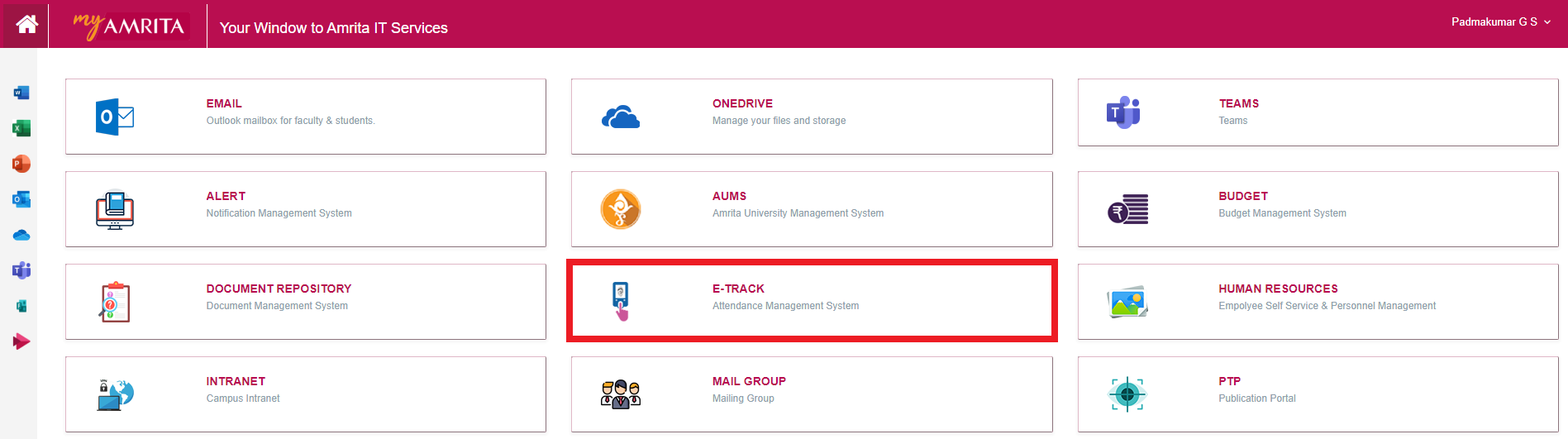
- Click AMRITA E-TRACK
Map Leave Type:
- Go to Other Settings
- Click Map Leave Type
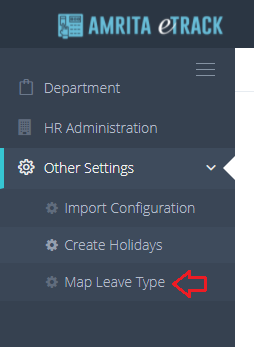
- Map Leave page will be displayed.
- Select the Leave to be mapped from drop-down.
- The school name and the employee category under the school for which this leave type has not mapped will be displayed.
- You can select the categories you want to map by marking the check box or click Select All to mark them all selected.
- Click Add button to map the leave to the selected categories.
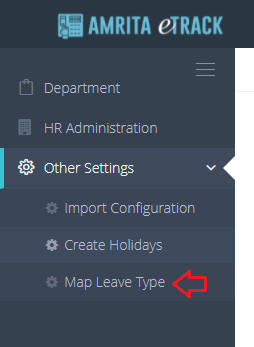
- You can go to the corresponding Employee category under HR Administration to verify whether the leave type got mapped or not.